

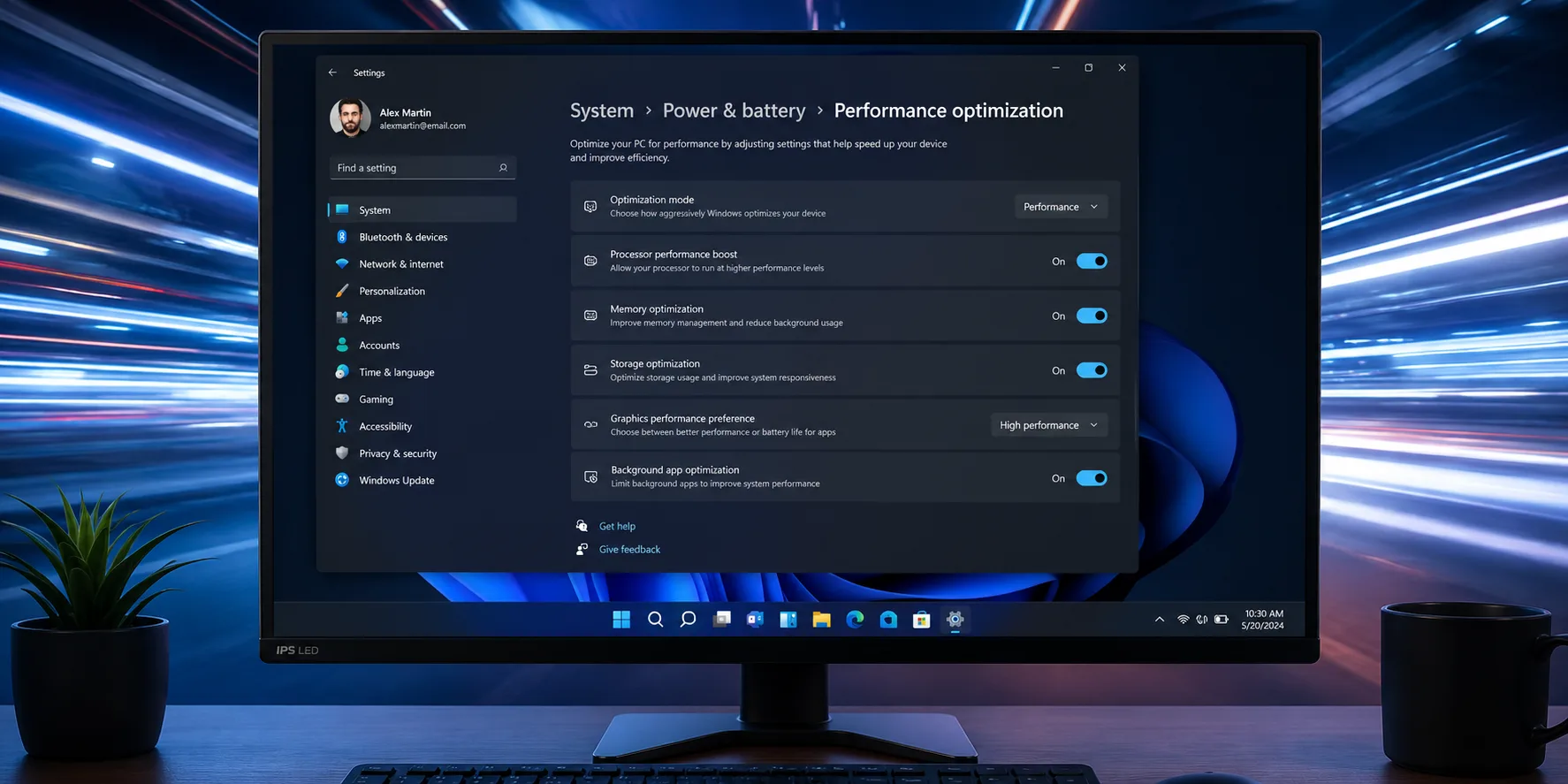
A slow Windows 11 PC kills productivity fast. Pages lag, apps freeze, and startup takes forever. Many users do not realize that small misconfigurations are often the real culprits. Learning how to speed up Windows 11 can restore performance without expensive hardware upgrades. This guide covers every proven method—from startup tweaks to advanced system settings—so any user can apply them step by step.
What Causes Windows 11 to Slow Down
Windows 11 slows down for several overlapping reasons. Too many startup programs consume RAM before the desktop even loads. Background processes quietly drain CPU and disk resources. Additionally, bloatware, outdated drivers, and fragmented storage all compound the problem. Understanding these causes makes every fix more targeted and effective.
Disable Unnecessary Startup Programs

Startup programs are one of the biggest performance drains on Windows 11. Each program that launches at boot consumes memory and CPU time. Open Task Manager (Ctrl + Shift + Esc), then click the Startup apps tab. Right-click any non-essential program and select Disable. This single step can shave seconds off boot time immediately.
Adjust Visual Effects for Better Performance
Windows 11 uses animations and transparency effects that look polished but tax system resources. Users with older or mid-range hardware feel this impact most. Go to Settings > Accessibility > Visual Effects and turn off Transparency effects and Animation effects. Additionally, search for “Adjust the appearance and performance of Windows” in the Start menu. Select Adjust for best performance to disable all non-essential animations at once.
Enable High Performance Power Plan
The default Balanced power plan limits CPU speed to conserve energy. Switching to High Performance removes those limits. Open Control Panel > Power Options and select High Performance. On laptops, this will reduce battery life, so use it only when plugged in. Many users report noticeable speed gains in CPU-heavy tasks after making this change.
Turn Off Background Apps
Many apps run silently in the background and consume resources constantly. Windows 11 allows users to restrict this behavior per app. Go to Settings > Apps > Installed Apps, select an app, click the three-dot menu, and choose “Advanced options.” Under Background app permissions, set it to Never. Repeat this for all non-critical applications.
Free Up Disk Space with Storage Sense
A nearly full drive slows read and write speeds significantly. Windows 11 includes Storage Sense, a built-in tool that removes temporary files automatically. Navigate to Settings > System > Storage and enable Storage Sense. Also, click Cleanup recommendations to manually remove large or unused files. Keeping at least 15% of drive space free is a widely recommended baseline.
Update Windows and Device Drivers
Outdated system files and drivers cause compatibility issues that hurt performance. Windows updates often include performance improvements, security patches, and bug fixes that can speed up the system. Go to Settings > Windows Update and install all pending updates. Additionally, update GPU, chipset, and network drivers from the manufacturer’s website or via Device Manager. Fresh drivers often resolve stuttering, lag, and app crashes instantly.
Use Efficiency Mode in Task Manager
Windows 11 introduced Efficiency Mode to throttle resource-hungry processes. Users can activate it by opening Task Manager, selecting a process, and clicking the Efficiency Mode icon at the top right of the screen. This limits the CPU priority of that process, freeing resources for active tasks. It works especially well for browser processes, update services, and background sync tools. Note that some system processes do not support Efficiency Mode.
Disable Search Indexing (For HDD Users)
Windows Search constantly indexes files in the background to deliver fast search results. On a traditional hard drive (HDD), this indexing noticeably slows performance. Search for “Indexing Options” in the Start menu and click Modify to limit indexed locations. Alternatively, open Services, find Windows Search, and set the startup type to manual. Users with SSDs may keep indexing enabled, as the performance cost is minimal on solid-state storage.
Clean Up Bloatware and Unused Apps
New computers often arrive with manufacturer-installed programs that are completely unnecessary or pure junk, and even a clean Windows 11 install includes many apps users may never use. Go to Settings > Apps > Installed Apps and uninstall anything unused. Pay special attention to trial software, OEM utilities, and promotional apps. Fewer installed programs means fewer background services consuming RAM. This also reduces the size of the Windows registry over time.
Switch to an SSD if Still Using HDD

No software tweak matches the performance gain from switching to a solid-state drive. SSDs read and write data 3 to 5 times faster than traditional spinning hard drives. Boot times drop from over a minute to under 15 seconds in many cases. Migrating the Windows installation to an SSD is straightforward using free tools like Macrium Reflect. This upgrade delivers the most dramatic speed improvement for any older system.
Adjust Virtual Memory Settings
Virtual memory acts as overflow storage when RAM is fully used. By default, Windows 11 manages this automatically, but manual adjustment can improve stability. Open System Properties > Performance Settings > Advanced > Virtual Memory and uncheck Automatically manage. Set a custom size equal to 1.5 times the total installed RAM as the initial value. This reduces disk thrashing during memory-intensive tasks.
Comparison: Software Fixes vs. Hardware Upgrades
| Method | Cost | Difficulty | Impact Level |
| Disable startup programs | Free | Easy | High |
| Adjust visual effects | Free | Easy | Medium |
| Enable High Performance plan | Free | Easy | Medium |
| Clean up bloatware | Free | Easy | Medium |
| Update drivers | Free | Moderate | High |
| Add more RAM | Paid | Moderate | Very High |
| Upgrade to SSD | Paid | Moderate | Very High |
| Reinstall Windows 11 | Free | Hard | High |
When to Consider Reinstalling Windows 11
A clean reinstall is the most thorough fix for a deeply corrupted or bloated system. Over years of use, Windows accumulates broken registry entries, leftover driver files, and corrupted system data. Go to Settings > System > Recovery and choose Reset this PC. Select “Remove everything” for a clean slate or “Keep my files” to preserve personal data. Many users report that a fresh install outperforms even a new configuration of the same hardware.
Future of Windows 11 Performance Optimization

Microsoft continues to refine Windows 11 with performance-focused updates. Recent builds have improved memory compression, background task scheduling, and AI-assisted resource management. Additionally, features like Intelligent Standby List Cleaner and smarter prefetching are being refined in newer builds. As hardware advances, Windows 11 is increasingly designed to scale efficiently across different device tiers. Users who keep their systems updated benefit from these improvements automatically.
Conclusion
Speeding up Windows 11 does not require technical expertise or expensive hardware. Most performance problems stem from software issues—startup clutter, visual overhead, and outdated drivers. Applying even five of the fixes in this guide produces measurable improvements. Furthermore, combining software tweaks with a hardware upgrade like an SSD delivers transformative results. Consistent maintenance keeps Windows 11 running at its best long-term.
Frequently Asked Questions
Why is Windows 11 so slow on my PC?
Windows 11 slows down due to too many startup programs, background processes, bloatware, outdated drivers, or insufficient storage space.
How do I speed up Windows 11 without spending money?
Disabling startup apps, turning off visual effects, enabling High Performance mode, cleaning up unused apps, and updating drivers are all free and effective methods.
Does Windows 11 run slower than Windows 10?
On older hardware, Windows 11 can feel slower due to higher system requirements, but proper optimization brings performance in line with or better than Windows 10.
Will adding more RAM speed up Windows 11?
Yes. Adding RAM is one of the most impactful hardware upgrades, especially if the system currently runs 4 GB or 8 GB, as Windows 11 performs best with 16 GB or more.
Is it safe to disable Windows Search indexing?
Disabling indexing is safe and reduces background disk activity. The trade-off is slower in-app search results, which most users find acceptable on HDDs.
READ More: ChatGPT Alternatives 2026: The Complete Guide to the Best AI Tools Available
[…] READ MORE: How to Speed Up Windows 11: The Complete Guide to Faster Performance […]
[…] READ MORE: How to Speed Up Windows 11: The Complete Guide to Faster Performance […]